# Welcome

Welcome to Collection Manager! We're very happy to have you :)

## What is Collection Manager?

In a nutshell, Collection Manager is a productivity app that provides various tools to help you sort and manage your collections.

### Key Features

<details>

<summary>Collection Sorting</summary>

Here are some of the ways you can sort the products in your collections.

1. [Visually](/sorting-collections/drag-and-drop-sorting), by dragging and dropping multiple products
2. [Numerically](/sorting-collections/numeric-sorting), by setting a numeric position for the products in a collection
3. [Randomly](/sorting-collections/random-sorting), by randomizing a whole collection, or just a first or last group of products
4. [Exporting](/exporting-and-importing-sort-orders/exporting-a-sort-order) and [importing](/exporting-and-importing-sort-orders/importing-a-sort-order) collection sort orders to work offline

</details>

<details>

<summary>Collection Duplication</summary>

[Duplicating a collection](/duplicating-collections/duplicating-a-collection) allows you to copy an existing collection while maintaining the sort order of the products. In other words, the order of the products in the new collection will be the same as the old collection.

<mark style="color:purple;">**Note:**</mark> <mark style="color:purple;"></mark><mark style="color:purple;">The products in the new collection are technically the same as the products in the original collection. If you need to make duplicates of the actual products, then just let us know and we'll discuss enabling the product duplication feature. This feature has some caveats so we like to explain it thoroughly before enabling it, to avoid any surprises.</mark>

</details>

<details>

<summary>Importing and Exporting of Sort Orders</summary>

If you prefer to work offline in Excel or Google Sheets, you can [export the sort order](/exporting-and-importing-sort-orders/exporting-a-sort-order) of the products for any manually sorted collection, change the sort order by setting a position number for the products in the spreadsheet, and then [import the sort order](/exporting-and-importing-sort-orders/importing-a-sort-order) back into Collection Manager.

There is also a trick where you can import the sort order of one collection, into another collection, and any matching products will use the imported sort order.

</details>

### Next Steps

We've put together some quick tutorials to get you started using Collection Manager *quickly* and *easily*.

{% content-ref url="/pages/SIagZ2lptfdIfFXPpr2V" %}
[First things first!](/getting-started/first-things-first)
{% endcontent-ref %}

{% content-ref url="/pages/xdrJO6tXv2LAgKOr9KOJ" %}
[Tutorials](/getting-started/tutorials)
{% endcontent-ref %}


# First things first!

There really isn't much to setup, but you might want to start by setting a few preferences so you won't have to do it later.

## Setting Your Preferences

This quick video will explain the preferences that you should set before you start using Collection Manager. This isn't mandatory, but setting them first might save you a little time later. You can change your preferences at any time.

### **Check out the Preferences tutorial!**

{% embed url="<https://www.youtube.com/embed/KueuBTZz7H8>" %}
First things first! Setting your preferences.
{% endembed %}

You may also want to set the delete permissions for products and collections on the preferences screen so you won't have to change them in the middle of sorting a collection.


# Tutorials

Here you'll find some quick tutorials to get you started using the major features of Collection Manager.

## Sorting Your Collections

{% content-ref url="/pages/0wD62iNfvZlRKcHiefg2" %}
[Drag and Drop Sorting](/sorting-collections/drag-and-drop-sorting)
{% endcontent-ref %}

{% content-ref url="/pages/AIptb7A62lw1GO3nqnpp" %}
[Numeric Sorting](/sorting-collections/numeric-sorting)
{% endcontent-ref %}

{% content-ref url="/pages/U6xBVhRfpCvfmXrj8xof" %}
[Random Sorting](/sorting-collections/random-sorting)
{% endcontent-ref %}

## Exporting and Importing Sort Orders

{% content-ref url="/pages/XZKD8aoI7uQtM3p50jGD" %}
[Exporting a Sort Order](/exporting-and-importing-sort-orders/exporting-a-sort-order)
{% endcontent-ref %}

{% content-ref url="/pages/Q8CVcbARQwnhIWuDT5EN" %}
[Importing a Sort Order](/exporting-and-importing-sort-orders/importing-a-sort-order)
{% endcontent-ref %}

## Duplicating Collections

{% content-ref url="/pages/jyRuTmKwnaIqNz9r3WeT" %}
[Duplicating a Collection](/duplicating-collections/duplicating-a-collection)
{% endcontent-ref %}


# Drag and Drop Sorting

Drag and drop sorting is the most popular feature of Collection Manager.

## Full-screen Sort

This quick video will explain the Full-screen Sort, drag and drop sorting feature. This is the easiest way to visually sort the products in a manually sorted collection.

One thing to keep in mind is that sorting automated and manual collections works the same way. The only real difference, is that with manual collections, you can also remove products. The reason this only works with manual collections, is that automated collections are controlled using rules.

### **Check out the Full-screen Sort tutorial!**

{% embed url="<https://youtu.be/RAXBdxuOwkA>" fullWidth="false" %}
Full-screen Sort Tutorial
{% endembed %}


# Numeric Sorting

Numeric sorting lets you fine-tune the positions of your products using numeric position numbers.

## Numeric Sort

You can use the Numeric Sort to position products anywhere in the collection. You can position a product anywhere from the very first spot at position 0, all the way to the end of the collection!&#x20;

This means that if you want to move a product to the end of a collection, you can just enter a numeric value instead of dragging it manually to the end.

### **Check out the Numeric Sort tutorial!**

{% embed url="<https://youtu.be/1YCsypOr-ec>" %}
Numeric Sort Tutorial
{% endembed %}


# Random Sorting

Random sorting lets you shuffle the positions of all products in a collection to give it a fresh look and make it appear as though there are new products available.

## Randomization

Randomizing a collection can keep a collection looking fresh, while surfacing products that may benefit from random exposure.

### **Check out the Random Sort tutorial!**

{% embed url="<https://youtu.be/PmhD5O2TYys>" %}
Random Sort Tutorial
{% endembed %}


# Exporting a Sort Order

Exporting collection sort orders lets you work offline in Excel, or any spreadsheet software that can read CSV files.

## Exporting

You can export the sort order of the products for any manually sorted collection. The export screen can be accessed from either the collection details page, or from the Full-screen Sort page.

### Check out the Export tutorial!

{% embed url="<https://youtu.be/1C_718Ybdeg>" %}
Export Feature Tutorial
{% endembed %}


# Importing a Sort Order

## Importing

You can import a previously exported sort order, to apply the changes you made offline in Excel, or other CSV software.

The import screen can be accessed from a collection details page, or from the Full-screen Sort page or any manually sorted collection.

### Check out the import tutorial!

{% embed url="<https://youtu.be/vZAJyMF_wfA>" %}
Import Feature Tutorial
{% endembed %}

### <mark style="color:green;">Important Tip - Cross-importing sort orders into other collections</mark>

Cross-importing sort orders means importing a single sort order into multiple different collections. This is a trick you can use to import the sort order of a collection, into another collection, and any matching products will use the imported sort order.

In other words, you can import a sort order into any collection, and any matching products in that collection will inherit the position numbers as long as the product IDs match up.

If you'd like to do this but aren't quite sure how it works, you can [create a support ticket](https://innovanet.zendesk.com/hc/en-us/requests/new) and we'll help you out.


# Duplicating a Collection

Duplicate a collection while maintaining the sort order of the original collection.

## Collection Duplication

The duplication feature allows you to create a new collection from an existing one, and ensures that the sort order of the new collection is the same as the original one.

### Step 1 - Select a collection to duplicate

Choose either a **Smart** or **Custom** collection to duplicate.

<figure><img src="https://148321946-files.gitbook.io/~/files/v0/b/gitbook-x-prod.appspot.com/o/spaces%2FToy9LI0ouoCYva18VDIu%2Fuploads%2Fu7eDDuYxBa5Uj75yWlmf%2Fimage.png?alt=media&amp;token=c596e74b-d085-4070-8e3a-2c4384eb0796" alt=""><figcaption><p>Choose a Collection</p></figcaption></figure>

### Step 2 - Click the Duplicate icon on the collection you want to select

<figure><img src="https://148321946-files.gitbook.io/~/files/v0/b/gitbook-x-prod.appspot.com/o/spaces%2FToy9LI0ouoCYva18VDIu%2Fuploads%2FNvgn5ZgGAvrbwanavfr0%2Fimage.png?alt=media&amp;token=c7d3a8e2-936c-49fd-b9ba-a6d627770112" alt=""><figcaption><p>Choose Duplicate</p></figcaption></figure>

### Step 3 - Enter the details of the new collection

Enter a title for the new collection and choose a sort order.

{% hint style="info" %}
If you choose **Manual** sorting for the new collection, the order of the products in the new collection will match the sort order of the original collection, if the original one was also set to **Manual** sorting.
{% endhint %}

<figure><img src="https://148321946-files.gitbook.io/~/files/v0/b/gitbook-x-prod.appspot.com/o/spaces%2FToy9LI0ouoCYva18VDIu%2Fuploads%2F3Aan4ltnqh8lDGCiifEp%2Fimage.png?alt=media&amp;token=d01eee6b-cd17-495d-95fa-607d8c8bcd3c" alt=""><figcaption><p>Enter the Details</p></figcaption></figure>

### Step 4 - Confirm the duplication

Finally, click the Next... button, and confirm your request to duplicate the collection.

<figure><img src="https://148321946-files.gitbook.io/~/files/v0/b/gitbook-x-prod.appspot.com/o/spaces%2FToy9LI0ouoCYva18VDIu%2Fuploads%2FPxjmAhnBTeq5eXSMptWn%2Fimage.png?alt=media&amp;token=8520bb96-1099-4a20-ba0d-a963ff812686" alt=""><figcaption><p>Confirm</p></figcaption></figure>

After a few minutes, you'll see a message on the screen to tell you that the new collection is ready. Hit the Refresh button on the collection list screen to see the newly created collection.

<figure><img src="https://148321946-files.gitbook.io/~/files/v0/b/gitbook-x-prod.appspot.com/o/spaces%2FToy9LI0ouoCYva18VDIu%2Fuploads%2F63CSZNEJ0Iqbihkf1ctp%2Fimage.png?alt=media&amp;token=957b45ec-0b8e-4537-bead-f2d194236945" alt=""><figcaption><p>Refresh to see the new collection</p></figcaption></figure>

## **That's it, you're done!**

You can now select the new collection.

{% hint style="warning" %}
Keep in mind that the products in the new collection are technically the same as the ones in the old collection. This means that if you change any product information in the new collection, it will change in the old one as well since it's the same products.

If you want to create true copies of the products, just let us know and we'll explain how to do that. We like to discuss it before we enable that feature to avoid any unexpected surprises.
{% endhint %}


# Frequently Asked Questions

We've compiled a list of the questions we receive most often.

{% hint style="info" %}
Any images within the FAQs below can be clicked to see a larger version.
{% endhint %}

<details>

<summary>Why doesn't the sort order in Collection Manager match my live shop site?</summary>

There are a few different reasons why this might happen. What we usually see is that there's another app installed that's overriding the sort order set within Collection Manager. One of the apps we see quite commonly is called "**Product Filter & Search by BoostCommerce**". There's nothing wrong with **Product Filter & Search**, but sometimes users are confused by the way this app and Collection Manager work together. There may be others that have a similar effect but this is the one we see the most often.

If you think of your shop from the front (i.e. what the customer sees) to the back (what Shopify and Collection Manager see), it sort of looks like this:

<img src="https://148321946-files.gitbook.io/~/files/v0/b/gitbook-x-prod.appspot.com/o/spaces%2FToy9LI0ouoCYva18VDIu%2Fuploads%2FqTZMsdrdtR6qr0KNBWsb%2FShop%20to%20CM.png?alt=media&amp;token=35c43119-fce2-4646-86a3-63ac37f976b6" alt="Data flow between Collection Manager and Shopify" data-size="original">

What this diagram shows is:

1. Collection Manager communicates with Shopify to read and update collection information (mainly sorting information)
2. Your live shop communicates with Shopify for product information including product position information.
3. The Shopify Admin (the middle) is the "source of truth".
4. Collection Manager **does not** work directly with your live shop site.

The reason this is important is that it illustrates that Collection Manager does not interact directly with the live shop site; it only interacts with the Shopify Admin via Shopify's APIs.

For this reason, we always ask one initial question when customers see their product sort orders aren't matching Collection Manager which is:

**"Does the sort order you see in Collection Manager match what you see in the Shopify Admin?"**

If the answer to this question is "Yes", then it means that something else other than Collection Manager is causing the problem. In other words:

**As long as the sort order in Collection Manager matches the Shopify Admin, Collection Manager is working correctly.**

### Do you have the **Product Filter and Sort** app installed?

If you do, try logging into that app, and head to the "Home" screen. It should look similar to this:

<img src="https://d33v4339jhl8k0.cloudfront.net/inline/67528/4ecdc15c3b7be4cd2f258cd554075d87dc5da969/855b1380eb8319e628563d4a73abbfe5aabea701/bcHome.png" alt="" data-size="original">

You'll see a "Sync" button on that screen. Go ahead and click that, and things should start to sync up. If not, please reach out to the **BoostCommerce** support team at [BoostCommerce Support](mailto:support@boostcommerce.net) for assistance.

### Still not working?

If for some reason the sort order you see in Collection Manager does not match what you see in the Shopify Admin, then please go ahead and create a ticket because this should never be the case.

**Happy sorting!**

</details>

<details>

<summary>How do I duplicate a collection?</summary>

Check out the [collection duplication tutorial](/duplicating-collections/duplicating-a-collection), or read on for some quick instructions.

1. Choose either **Custom Collections** or **Smart Collections** from the main menu, and then choose **Manage.**
2. Find the collection you would like to duplicate, and place your mouse over the image of the collection, then click the duplicate icon as shown below.\
   ![](https://148321946-files.gitbook.io/~/files/v0/b/gitbook-x-prod.appspot.com/o/spaces%2FToy9LI0ouoCYva18VDIu%2Fuploads%2FtwZ0YHjkykthIYWwtpcl%2Fimage.png?alt=media\&token=6a5745d9-f38a-4122-8b9b-2cc4193fc46e)<br>
3. On the Duplication screen, enter the new collection name, and choose the options you'd like, then click **Next...**
4. You'll see a confirmation message, and then a notice to let you know when the duplication has started, and when it has finished.

That's it! As always, feel free to reach out to us at [Collection Manager Support](https://innovanet.zendesk.com/hc/en-us/requests/new) for assistance.

**Happy sorting!**

</details>

<details>

<summary>Why do I keep getting an error saying "Error executing request. Please try refreshing the page"?</summary>

There are times while using Collection Manager that you may see this error. You will likely see a small red popup that looks like the image below:

<img src="https://innovanet.zendesk.com/hc/article_attachments/360015616171/error.jpg" alt="error.jpg" data-size="original">

Usually you can just hit refresh using **F5** or **CTRL + R**. Sometimes you'll want to try **CTRL + SHIFT + R** which will cause your browser to make a request to the server, overriding anything you have cached. It's a good idea to try that if the regular refresh isn't working.

Unfortunately there are times when refreshing won't work and you'll keep seeing this error. When that happens, try the following:

1. Make sure whichever browser you're using is at the latest version. If not, try doing an update. Sometimes browser manufacturers will release an update that causes these types of issues to arise. Usually updating the browser will help.
2. Try a different browser. Often trying a different browser will get you around this problem until a proper fix is released by the manufacturer (or by us if it's not a browser issue).

As always, you can [create a ticket](https://innovanet.zendesk.com/hc/en-us/requests/new) and we'll assist as soon as possible.

By the way, the following browsers work best with Collection Manager (in this order):

1. <mark style="color:green;">**Chrome by Google (recommended)**</mark>
2. Firefox by Mozilla
3. Edge by Microsoft
4. Safari by Apple

**Happy sorting!**

</details>

<details>

<summary>Why can't I see some of my products in the Collection Manager full-screen sort, even though I can see them in the Shopify Admin?</summary>

There's a setting in Collection Manager (shown below) that will allow you to hide products that are currently in an "unpublished" state. It can be found in the "**Display Options**" on the "Full-screen sort" page.

![](https://148321946-files.gitbook.io/~/files/v0/b/gitbook-x-prod.appspot.com/o/spaces%2FToy9LI0ouoCYva18VDIu%2Fuploads%2FRoSuwDhvT7fjmgx3daKt%2Fimage.png?alt=media\&token=abd3cd69-6dbe-4cb7-8cd7-90a8a3b240d8)

Clicking on **Display Options > General...** will show the window below. Make sure the "**Show unpublished**" setting is set the way you want it and click **Apply** to save the change.

![](https://148321946-files.gitbook.io/~/files/v0/b/gitbook-x-prod.appspot.com/o/spaces%2FToy9LI0ouoCYva18VDIu%2Fuploads%2FyeR1XmwhUOocvPxB1p6O%2Fimage.png?alt=media\&token=087255b4-b340-49d3-8541-f05c35aa34f9)

<mark style="color:purple;">Note: If "Show unpublished" is set to "No", any unpublished products will not be visible.</mark>

**Happy sorting!**

</details>

<details>

<summary>Can I export the sort order of a collection, and import it into another collection?</summary>

Yes! You can do this, but the trick is that only the products with matching IDs will be sorted. All other products will remain unchanged.

**Happy Sorting!**

</details>

<details>

<summary>Will I be charged if I uninstall Collection Manager before the free trial ends?</summary>

We would certainly hate to see you go! :cry:

Don't worry though, as long as you uninstall Collection Manager within the free trial period, you will not be charged.

</details>

<details>

<summary>Can I change the product information displayed on the Full-screen sort page?</summary>

Yes, there are several different types of information you can hide or show for the products on the Full-screen sort page. These will be shown on each product while you're sorting to help you make decisions about where a product should appear in the collection.

On the **Full-screen Sort** page, choose Display Options > General... to show the option window.

![](https://148321946-files.gitbook.io/~/files/v0/b/gitbook-x-prod.appspot.com/o/spaces%2FToy9LI0ouoCYva18VDIu%2Fuploads%2FsTXHA6yIpNFa0ykfq3Ql%2Fimage.png?alt=media\&token=697ba308-c5e5-4977-95da-373b3d01a209)

From there, you can choose which information you would like to see on each product. Click **Apply** to save your changes, or **Reset** if you would like to set the options back to the defaults.

<mark style="color:purple;">Keep in mind that these settings only apply to the current collection.</mark>

Check out the [Full-screen Sort tutorial](/sorting-collections/drag-and-drop-sorting) for additional information.

**Happy Sorting!**

</details>

<details>

<summary>How do I show product tags on the Full-screen sort page?</summary>

To display product tags, on the Full-screen sort page, choose **Display Options > Tags**.

![](https://148321946-files.gitbook.io/~/files/v0/b/gitbook-x-prod.appspot.com/o/spaces%2FToy9LI0ouoCYva18VDIu%2Fuploads%2FTddhtk7109AhkFBvuOA8%2Fimage.png?alt=media\&token=33cf4dc8-6b2d-4410-839d-76193355d008)

This will open a small window where you can turn products tags on or off. You can also choose which tags to display if you only want to see certain tags.

<mark style="color:purple;">Keep in mind, tag settings only apply to the current collection, since each collection may have products with different tags available.</mark>

Check out the [Full-screen Sort tutorial](/sorting-collections/drag-and-drop-sorting) for additional information.

**Happy Sorting!**

</details>

<details>

<summary>Can I change the number of columns on the Full-screen sort view?</summary>

Yes! You can change the number of columns that are displayed on the Full-screen sort page using **Display Options > General...**

![](https://148321946-files.gitbook.io/~/files/v0/b/gitbook-x-prod.appspot.com/o/spaces%2FToy9LI0ouoCYva18VDIu%2Fuploads%2FwbXZmcVA9SmdodJVJmIi%2Fimage.png?alt=media\&token=60506fdf-1b2f-460b-8c1c-f14b994a2f7f)

From there you can choose the number of columns you wish to display. You can also set the screen width to something closer to a mobile phone.

Check out the [Full-screen Sort tutorial](/sorting-collections/drag-and-drop-sorting) for additional information.

**Happy Sorting!**

</details>

<details>

<summary>How do I move products between two custom collections?</summary>

1. Choose **Custom Collections** and then **Manage** from the top menu bar.
2. Find the two collections you would like to move products between (you can also use the Search).
3. Click the checkbox in the upper right corner of the two custom collections you would like to move products between (as shown below).\
   \
   ![](https://148321946-files.gitbook.io/~/files/v0/b/gitbook-x-prod.appspot.com/o/spaces%2FToy9LI0ouoCYva18VDIu%2Fuploads%2FTzOrZ8q3v73ID3TAdM1f%2Fimage.png?alt=media\&token=fb66cb08-6c2e-40e2-b6cd-6864bd4bb59e)
4. Once you've selected two custom collections, click the **Compare** button. This will take you to a page where you can drag and drop products between the two collections you've selected.\ <img src="https://148321946-files.gitbook.io/~/files/v0/b/gitbook-x-prod.appspot.com/o/spaces%2FToy9LI0ouoCYva18VDIu%2Fuploads%2FQsqGXboZSlomHHLg0oSC%2Fimage.png?alt=media&amp;token=80f73e49-67d8-42a1-bc35-cbf684dab684" alt="" data-size="original">
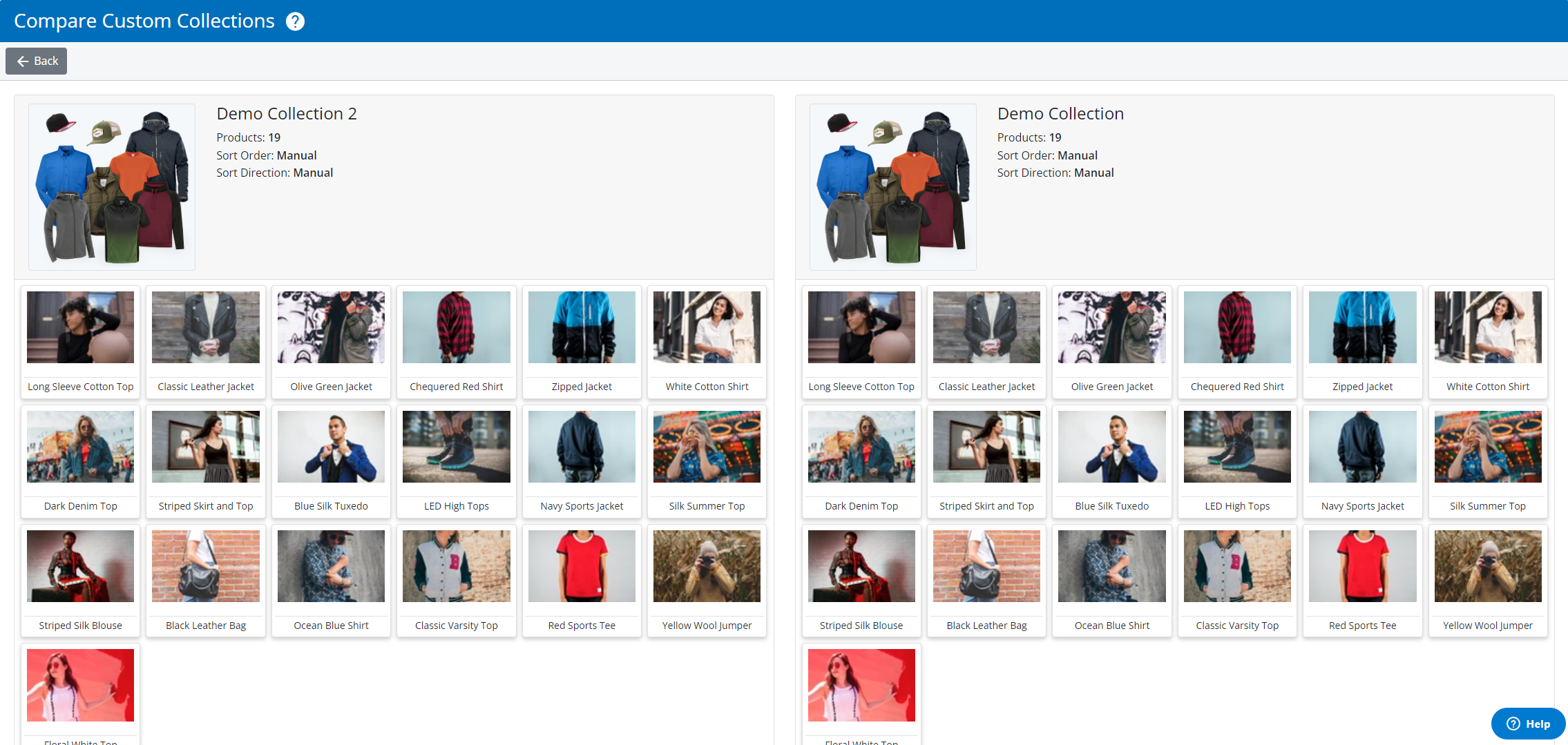
5. You can now drag and drop products between the two collections.&#x20;

**Happy Sorting!**

</details>

<details>

<summary>Why can't I see the "Sort" menu when I choose certain collections?</summary>

Check the **Sort order** and **Sort direction** labels at the bottom left on the collection details screen. These must be set to **Manual** or you won't be able to manually sort the collection.

![](https://148321946-files.gitbook.io/~/files/v0/b/gitbook-x-prod.appspot.com/o/spaces%2FToy9LI0ouoCYva18VDIu%2Fuploads%2Frv4V3FnFjCfuuhorwKoP%2Fimage.png?alt=media\&token=f95b90a6-910f-4578-96e8-35e003655590)

**Happy Sorting!**

</details>


# Troubleshooting

Having trouble? Here are some common issues and solutions.

## Common Issues

There are a few issues that we commonly see from our users. This is where we'll share any solutions we've collected to address those issues.

As always, feel free to [contact us](/need-something-else/contact-us) if you need any help at all.

<details>

<summary>The product sort for my collection doesn't match what I see in Collection Manager</summary>

There are a few different reasons why this might happen. What we usually see is that there's another app installed that's overriding the sort order set within Collection Manager. One of the apps we see quite commonly is called "**Product Filter & Search by BoostCommerce**". There's nothing wrong with **Product Filter & Search**, but sometimes users are confused by the way this app and Collection Manager work together. There may be others that have a similar effect but this is the one we see the most often.

If you think of your shop from the front (i.e. what the customer sees) to the back (what Shopify and Collection Manager see), it sort of looks like this:

![](https://148321946-files.gitbook.io/~/files/v0/b/gitbook-x-prod.appspot.com/o/spaces%2FToy9LI0ouoCYva18VDIu%2Fuploads%2F9KlrQLTO05fMmSml3dLI%2Fimage.png?alt=media\&token=272e7f68-8902-42f0-b4a6-db869a1f02a0)

What this diagram shows is:

1. Collection Manager communicates with Shopify to read and update collection information (mainly sorting information)
2. Your live shop communicates with Shopify for product information including product position information.
3. The Shopify Admin (the middle) is the "source of truth".
4. Collection Manager **does not** work directly with your live shop site.

The reason this is important is that it illustrates that Collection Manager does not interact directly with the live shop site; it only interacts with the Shopify Admin via Shopify's APIs.

For this reason, we always ask one initial question when customers see their product sort orders aren't matching Collection Manager which is:

**"Does the sort order you see in Collection Manager match what you see in the Shopify Admin?"**

If the answer to this question is "Yes", then it means that something else other than Collection Manager is causing the problem. In other words:

**As long as the sort order in Collection Manager matches the Shopify Admin, Collection Manager is working correctly.**

### Do you have the **Product Filter and Sort** app installed?

If you do, try logging into that app, and head to the "Home" screen. It should look similar to this:

<img src="https://d33v4339jhl8k0.cloudfront.net/inline/67528/4ecdc15c3b7be4cd2f258cd554075d87dc5da969/855b1380eb8319e628563d4a73abbfe5aabea701/bcHome.png" alt="" data-size="original">

You'll see a "Sync" button on that screen. Go ahead and click that, and things should start to sync up. If not, please reach out to the **BoostCommerce** support team at [BoostCommerce Support](mailto:support@boostcommerce.net) for assistance.

### Are you using a theme called <mark style="color:purple;">Debut</mark>?

We've seen cases where this particular theme conflict with Collection Manager. If you have this theme, make sure you've downloaded the latest version.

### Does your theme have a sorting option?

If your theme has an option for sorting collections, you'll want to make sure it's set to "**Manual**" sorting for any collections that you want to sort using **Collection Manager**. The reason for this, is that a theme can override the sort order from Collection Manager.

### Are you using <mark style="color:purple;">Shopify Search and Discovery</mark>?

If you're using this from Shopify, it is likely what's causing the issue due to synching/caching.

Please check with Shopify support as they can help you solve this problem quickly.

### Is your collection set to "Sort: Manually"?

If you see that your sort order isn't being applied to your front-end, check that the collection you're sorting is set to "**Sort: Manually**" in the Shopify admin as shown below.

![](https://148321946-files.gitbook.io/~/files/v0/b/gitbook-x-prod.appspot.com/o/spaces%2FToy9LI0ouoCYva18VDIu%2Fuploads%2FfBqqGsfLB6BIRnXmuYmP%2Fimage.png?alt=media\&token=c1113ea2-f3db-49f9-8bc5-190e7a1dc91f)

### Sometimes Shopify is a little slow to update.

If your sort order isn't matching, try waiting a few minutes as sometimes it takes Shopify a little bit longer to process the update.

After you click Save, Collection Manager sends your sort order to Shopify. Please keep in mind that once Shopify receives it, it takes a little time to apply it. Unfortunately we don't have any control over this, so it's best to wait up to <mark style="color:orange;">**15 minutes**</mark> before creating a support ticket with us, just to be sure Shopify isn't a little slow that day.

</details>


# Request a New Feature

The Collection Manager Team always welcomes new feature requests! If you have a new feature in mind, please let us know!

## Feature Requests

To request a new feature, please use Feature Request link in the main menu. This link will take you to the request form where you can let us know what's on your mind!

### **Click the image below for a larger view**

<figure><img src="https://148321946-files.gitbook.io/~/files/v0/b/gitbook-x-prod.appspot.com/o/spaces%2FToy9LI0ouoCYva18VDIu%2Fuploads%2FUiuDP9QkdMv3nfPNezZA%2Fimage.png?alt=media&amp;token=b9b1e1ca-e039-47d9-9ca1-d1c6db5e08a4" alt=""><figcaption><p>Feature Request Screen</p></figcaption></figure>


# Contact Us

Need help, have a question, or just want to say hello?

## Live Status Page

You can follow the live status of the Collection Manager app at the [Live Status Page](https://collectionmanager.statuspage.io/) website.

If there are any known issues with the app, this is where we will post updates so you can follow our progress as we work through them. :hammer\_pick:

## Email Support

Please feel free to reach out to our friendly [Support Team](mailto:support@innovanet.zendesk.com) anytime by [email](mailto:support@innovanet.zendesk.com).

Our support team is extremely responsive and will usually response within a few hours to a day at most.

## Create a Support Ticket

If you prefer, you can also [create a support ticket](https://innovanet.zendesk.com/hc/en-us/requests/new) using our online [form](https://innovanet.zendesk.com/hc/en-us/requests/new). We will generally respond the same day!

#### Whichever way you choose to contact us...

We'll be here for you! :heart:


# Live App Status

This is where you can view the live status of the app.

## Collection Manager Status Page

You can follow the live status of the Collection Manager app at the [Live Status Page](https://collectionmanager.statuspage.io/) website.

If there are any known issues with the app, this is where we will post updates so you can follow our progress as we work through them.


# Privacy Policy

Your privacy is important to us.

{% hint style="info" %}
This **Privacy Policy** describes how your personal and shop information is collected and used when you install and use the Shopify Application **Collection Manager** (the "App").
{% endhint %}

## What data do we collect?

### Shop Information

When you install the App, we retrieve information about your shop which includes the shop name, domain, plan, number of collections, and number of products. We use this information to authenticate your shop, and so that we can adjust our systems for performance reasons, and to meet your needs in terms of storage. We also collect time zone and location information so that we can accurately schedule tasks within the App.

We refer to this information as **“Shop Information”** within this privacy policy.

### Personal Information

The personal information that we collect is limited to the shop owner name and email address. This information is used only for correspondence with our team, and for regular communications from the App, to you and your staff.

We refer to this information as **“Personal Information”** within this privacy policy.

### Device Information

When you install and use the App, we automatically collect certain information about your device, including information about your web browser, IP address, and time zone. Additionally, as you use the App, we collect information about the individual application pages that you view, which websites or search terms referred you to the App, and information about how you interact with the App. We refer to this automatically-collected information as **“Device Information.”**

We collect Device Information using the following technologies:

* “Log files” track actions occurring within the App, and collect data including your IP address, browser type, Internet service provider, referring/exit pages, and date/time stamps.
* “Web beacons,” “tags,” and “pixels” are electronic files used to record information about how you use the App.
* "Google Analytics" is a third-party provider that is owned and maintained by <mark style="color:blue;">G</mark><mark style="color:red;">o</mark><mark style="color:yellow;">o</mark><mark style="color:blue;">g</mark><mark style="color:green;">l</mark><mark style="color:red;">e</mark>. We use this analytics provider to gather specific details about the physical location of the devices that access the App, as well as each device's capabilities.

{% hint style="info" %}
**Cookies:** The App itself **DOES NOT** use cookies whatsoever, for any reason, nor do we place "third-party" cookies on your browser during your Shopify session. The App maintains your authentication status using a JSON Web Token (JWT) which is provided to the App electronically by Shopify when you login to the Shopify platform. This token is continuously changed and resent to the App by Shopify during your session, to ensure that your connection and shop data remain secure at all times.

Some of the third-party providers that we use may place cookies into your browser. This includes:

* [Zendesk](https://www.zendesk.com) (you can read more about [Zendesk's Privacy Policy](https://www.zendesk.com/company/agreements-and-terms/privacy-notice))
* [<mark style="color:blue;">G</mark><mark style="color:red;">o</mark><mark style="color:yellow;">o</mark><mark style="color:blue;">g</mark><mark style="color:green;">l</mark><mark style="color:red;">e</mark>](https://www.google.com) (you can read more about [Google's Privacy Policy](https://policies.google.com/privacy?hl=en-US))
  {% endhint %}

## How do we use your information?

### Shop Information

We use the shop Information that we collect generally to authenticate you and to allow the App to act on your behalf for the purpose of:

* Duplicating, importing, and exporting collection sort orders
* Altering the sort order of products within your collections
* Various other collection management activities requiring your permission which you explicitly grant when you install the App

#### Collection and Product Counts

We use the collection and product counts to tailor the application your shop. This allows us to ensure that we optimize the App performance for your specific conditions.

### Personal Information

We collect your contact information (name and email address) when you install the App so that we can contact you when you request support or for general correspondence. We also use your email to send collection report files, and to advise you of the status of your actions.

If you do not wish to receive emails at your shop owner email address, you are able to provide an alternate email address through the preferences section of the App.

#### Sharing Your Personal Information

We do not share your Personal or Shop Information with anyone whatsoever, for any reason.

## How do we handle "Do Not Track" signals?

Please note that we do not alter the App's data collection and use practices when we see a Do Not Track signal from your browser. The reason for this is that the App does not use cookies or tracking information to perform the functions for which it was installed.

## What are your rights?

If you are a European resident, you have the right to access personal information we hold about you and to ask that your personal information be corrected, updated, or deleted. If you would like to exercise this right, please contact us through the contact information below.

Further to this, if you are a European resident we note that we are processing your information in order to fulfill requests you make with regard to the management of your shop and more specifically, your products and collections. Additionally, please note that during your usage of the App, your information will be transferred outside of Europe, including to Canada and the United States for the purpose of development, troubleshooting, and general maintenance of the App.

## How long do we retain your data?

When you install and use the App, we will maintain your shop information for our records unless and until you ask us to delete this information, or when you uninstall the App. Some information is used for "offline" processes which refers to jobs that run automatically in the background to process queued tasks that require access to your shop by an offline server.

When you uninstall the App, we receive a signal from Shopify so that we can redact your personal information. All personally identifying information is removed from the App within 48 hours of uninstalling the App, or whenever we receive the "redact" signal from Shopify.

## How do we secure your data?

All of our application servers are managed be an industry-leading cloud provider. The databases that house your personal and shop information run in a private network that is only accessible by our internal systems. There is no public access to these database from the internet which means it is not possible to access this data directly.

Furthermore, all data stored in the private network is encrypted in transit and at rest, so you can be sure that your data is secure at all time while it is flowing through the App.

## Minors

There are no age restrictions with respect to the usage of the App.

## Changes

We may update this privacy policy from time to time in order to reflect, for example, changes to our practices or for other operational, legal or regulatory reasons.

## Contact Us

For more information about our privacy practices, if you have questions, or if you would like to make a complaint, please contact the **Privacy Officer** by e-mail at [support@innovanet.zendesk.com](mailto:support@innovanet.zendesk.com?subject=Privacy%20Policy).


